
Connect to BINANCE Exchange
Bybot trades on your Binance account through an API key. Your funds stay on the exchange: the key lets the bot see your balance and place spot orders, but it cannot withdraw funds. Setup takes about 5 minutes.
Binance uses a different scheme than Bybit and MEXC. Bybot generates the key pair for you and shows you only the public key. You register it on Binance as a Self-generated key and paste the API Key from Binance back into Bybot. The private key never leaves Bybot’s server, and you don’t need to enter a secret.
What you need
- A Binance account with completed identity verification — Binance won’t let you create an API key without it
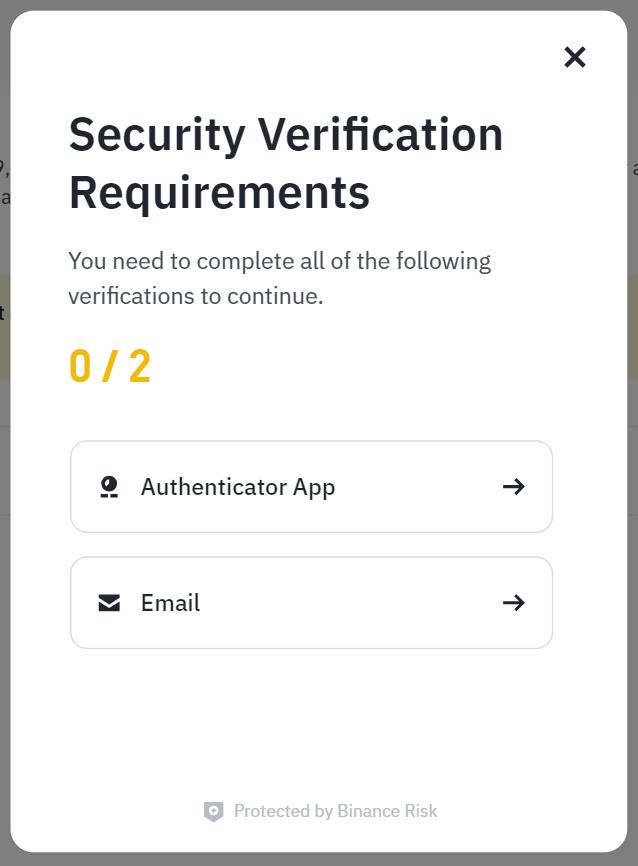
- Two-factor authentication (Authenticator App) enabled on Binance
- A Bybot account — you start in Bybot, not on Binance
1. Generate a key in Bybot
In Bybot, open “Settings” → “API Keys” and click “Add key”. Select BINANCE as the exchange and click “Generate key”.
Bybot will show the “Public key for Binance” — a text block that starts with -----BEGIN PUBLIC KEY-----. Click “Copy”.
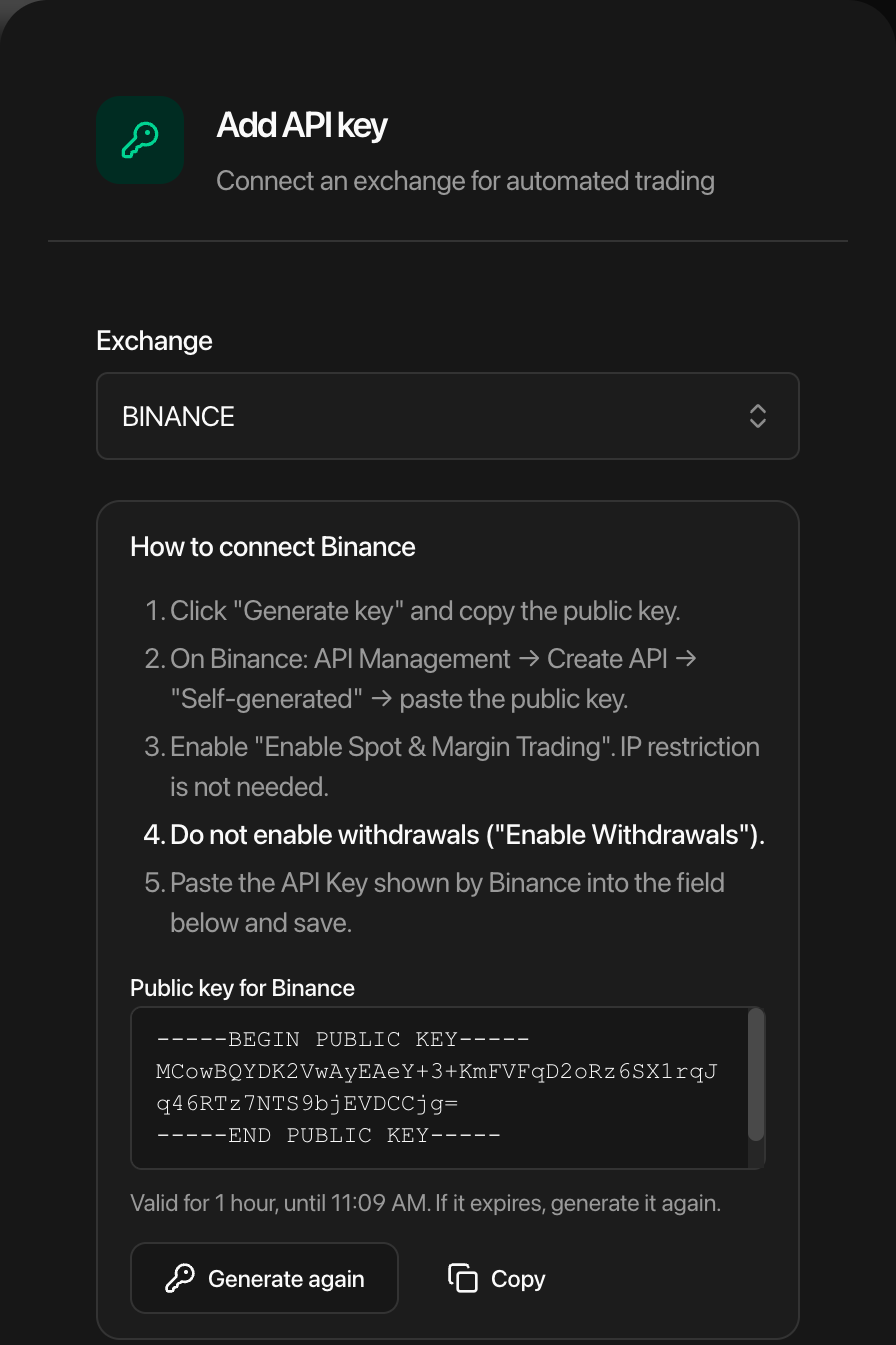
The public key is valid for 1 hour. Finish the steps on Binance within that time. If it expires, click “Generate again” and use the new public key — the old one won’t work.
Keep this Bybot tab open: you’ll come back to it in step 7.
2. Log in to Binance
No account yet? Create one and complete identity verification.
3. Open API Management
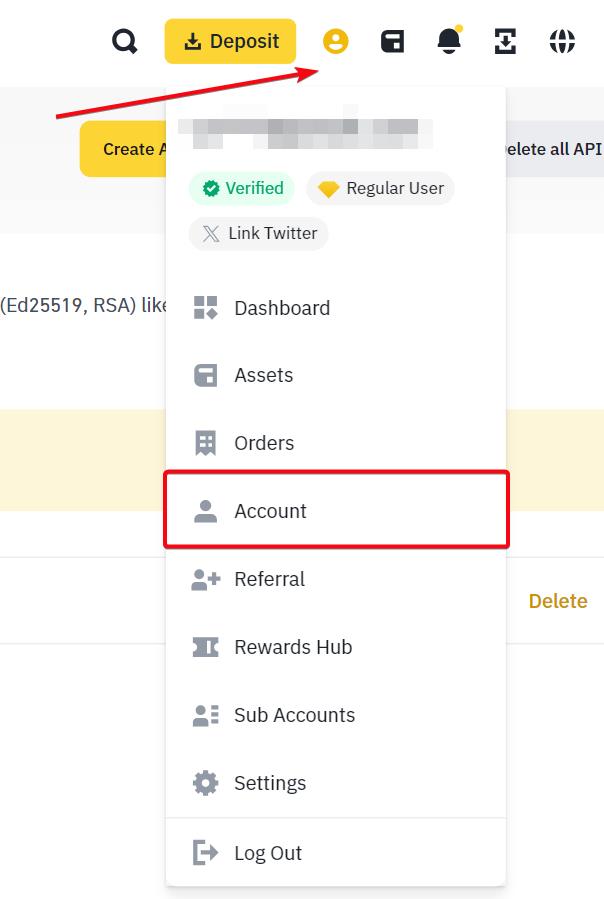
Click the profile icon in the top-right corner and select Account.
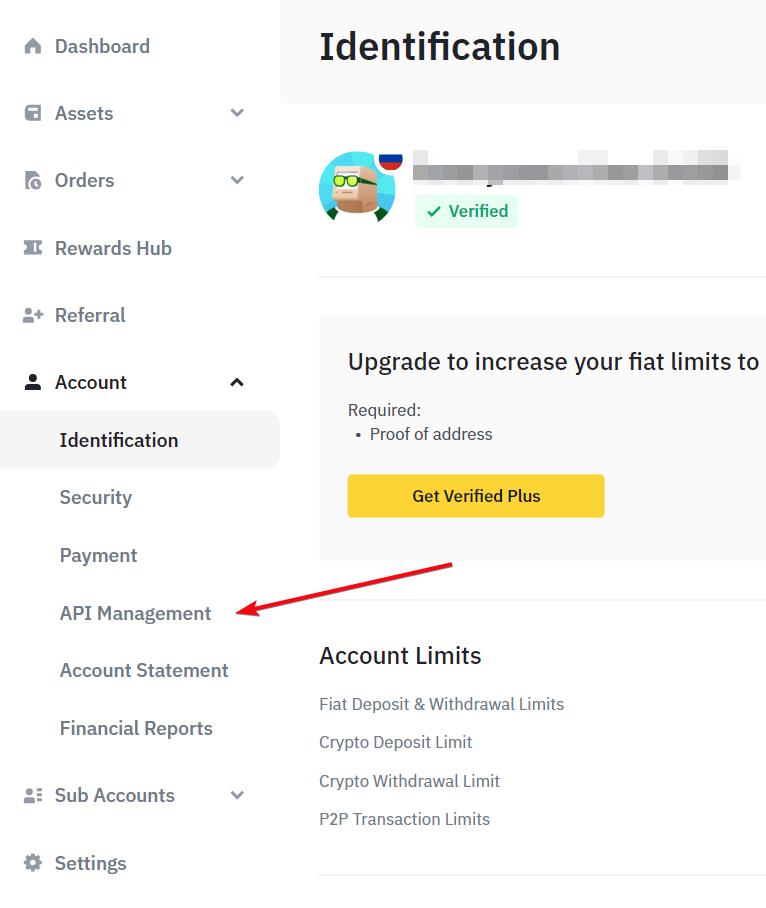
In the left menu, under Account, select API Management.
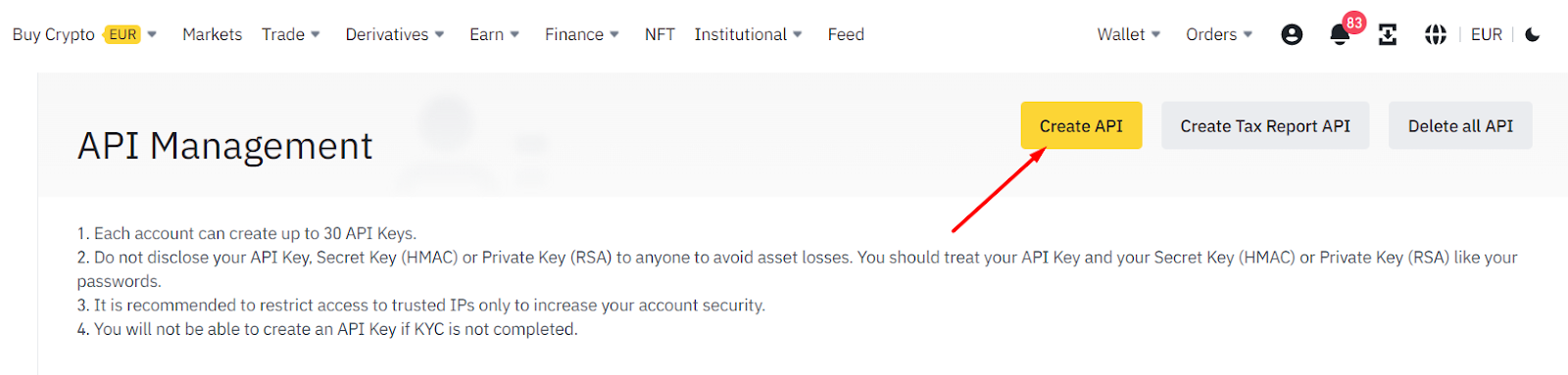
4. Click “Create API”
5. Choose “Self-generated” and paste the public key
In the “Choose API Key type” window, select Self-generated — not “System generated” — and click Next.
Paste the public key you copied in Bybot into the public key field — the whole block, including the -----BEGIN PUBLIC KEY----- and -----END PUBLIC KEY----- lines. Then enter any name for the key, e.g. bybot, and click Next.
Don’t choose “System generated”. That type gives you an API Key and a Secret Key, and Bybot doesn’t accept it for Binance. With “System generated” Binance would also require an IP whitelist, while a Self-generated key works without one.
Confirm the creation with the codes from your Authenticator App and email.
6. Set the key restrictions
Open the new key in API Management and click Edit restrictions:
| Setting | What to select |
|---|---|
| Enable Reading | ✅ on (enabled by default) |
| Enable Spot & Margin Trading | ✅ on |
| Enable Withdrawals | ❌ off |
| IP access restrictions | Unrestricted — leave as is |
Leave every other checkbox (Futures, Margin Loan, Universal Transfer, Options) unchecked — the bot doesn’t need them. Save the changes and confirm them with 2FA.
Never enable “Enable Withdrawals”. Bybot rejects a key that has withdrawals enabled.
7. Paste the API Key into Bybot
Copy the API Key that Binance shows for the new key. Go back to the Bybot tab, paste it into the “API key” field (placeholder “API Key from Binance”) and click “Save”.
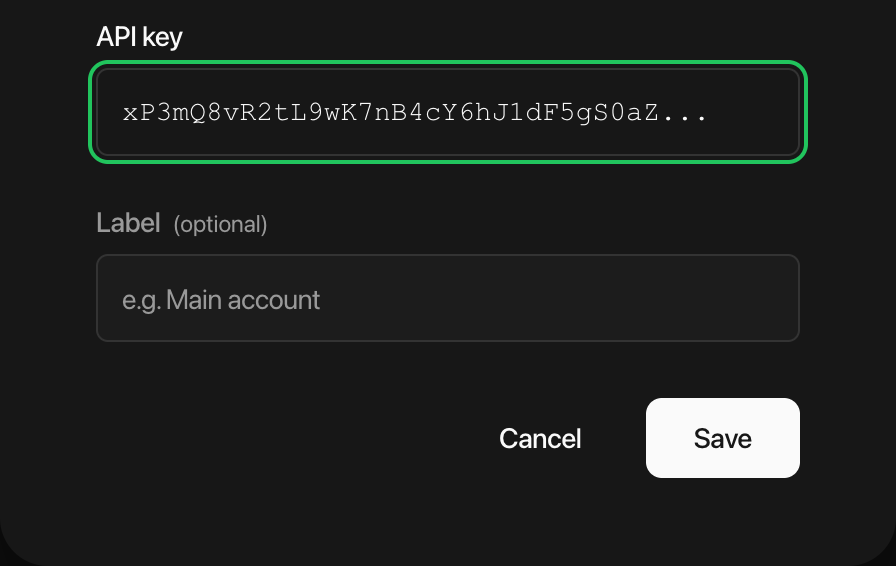
There is no secret field for Binance — Bybot already holds the private key. After saving, the key appears in the list with “No expiry” in the date column.
8. Check your balance
The bot trades with funds on your Spot wallet. If your USDT sits in the Funding wallet, move it to Spot via Wallet → Transfer.
If there’s no USDT on your Spot wallet, the bot won’t be able to place orders.
Key security
- Withdrawals are impossible. Bybot accepts a Binance key only with withdrawals turned off.
- The private key never leaves Bybot. You only see and copy the public key; Binance never receives the private key either.
- The key doesn’t expire. Self-generated keys work until you delete them — no need to renew every few months.
- Bybot will never ask for your Binance password or 2FA codes.
- If you stop using the bot, delete the key in Binance API Management. Access ends immediately.
Common issues
“The generated key was not found or has expired”. More than an hour passed since you generated the key, or you generated a new one after registering the old one on Binance. In Bybot click “Generate again”, create a new Self-generated key on Binance with the new public key, and save its API Key in Bybot. Delete the unused key on Binance.
“Withdrawals are enabled for this key”. Open the key on Binance → Edit restrictions → turn off Enable Withdrawals, save, and add the key in Bybot again.
“The key has no spot trading permission”. Open the key on Binance → Edit restrictions → turn on Enable Spot & Margin Trading, save, and add the key in Bybot again.
“Binance rejected the key”. Check that you copied the API Key from Binance in full, without extra spaces, and that the key was created as Self-generated with the public key from Bybot. If in doubt, delete the key on Binance and start again from step 1.
Can’t create a key on Binance. Binance requires completed identity verification and enabled 2FA to create API keys.
Official exchange guide: How to create Self-generated API keys on Binance.