
Connect to BINGX Exchange
Bybot trades on your BingX account through an API key. Your funds stay on the exchange: the key lets the bot see your balance and place spot orders, but it cannot withdraw funds. Setup takes about 5 minutes.
What you need
- A BingX account — sign up
- Two-factor authentication (Google Authenticator) — BingX asks for its code when you create a key
- USDT on your BingX Spot account
1. Log in to BingX
No account yet? Create one. If BingX asks you to complete identity verification before creating API keys, do it first.
2. Open API Management
Click the profile icon in the top-right corner and select API Management.
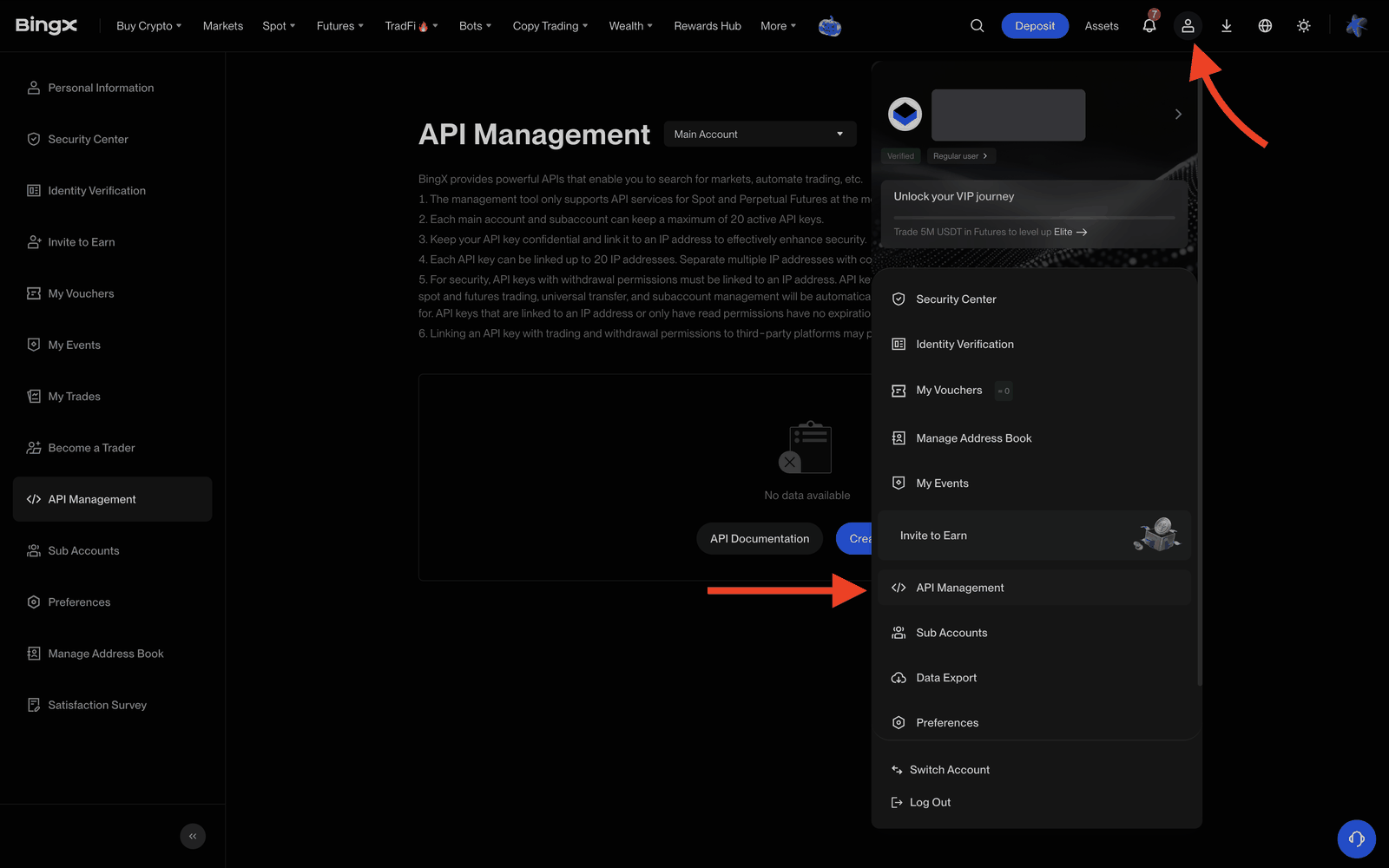
Make sure Main Account is selected next to the page title, unless you want the bot to trade on a subaccount.
3. Click “Create API”
The button is in the top-right corner of the API Management page.
4. Configure the key
In the Create API Key window:
| Field | What to select |
|---|---|
| Label the API Key | Anything, e.g. bybot |
| Read | ✅ on (enabled by default) |
| Spot Trading | ✅ on |
| Withdraw | ❌ off |
| IP Address Whitelist (Optional) | leave empty |
Leave every other checkbox (Perpetual Futures Trading, Universal Transfer, Manage Subaccounts, P2P Trading) unchecked — the bot doesn’t need them. Click “Confirm”.
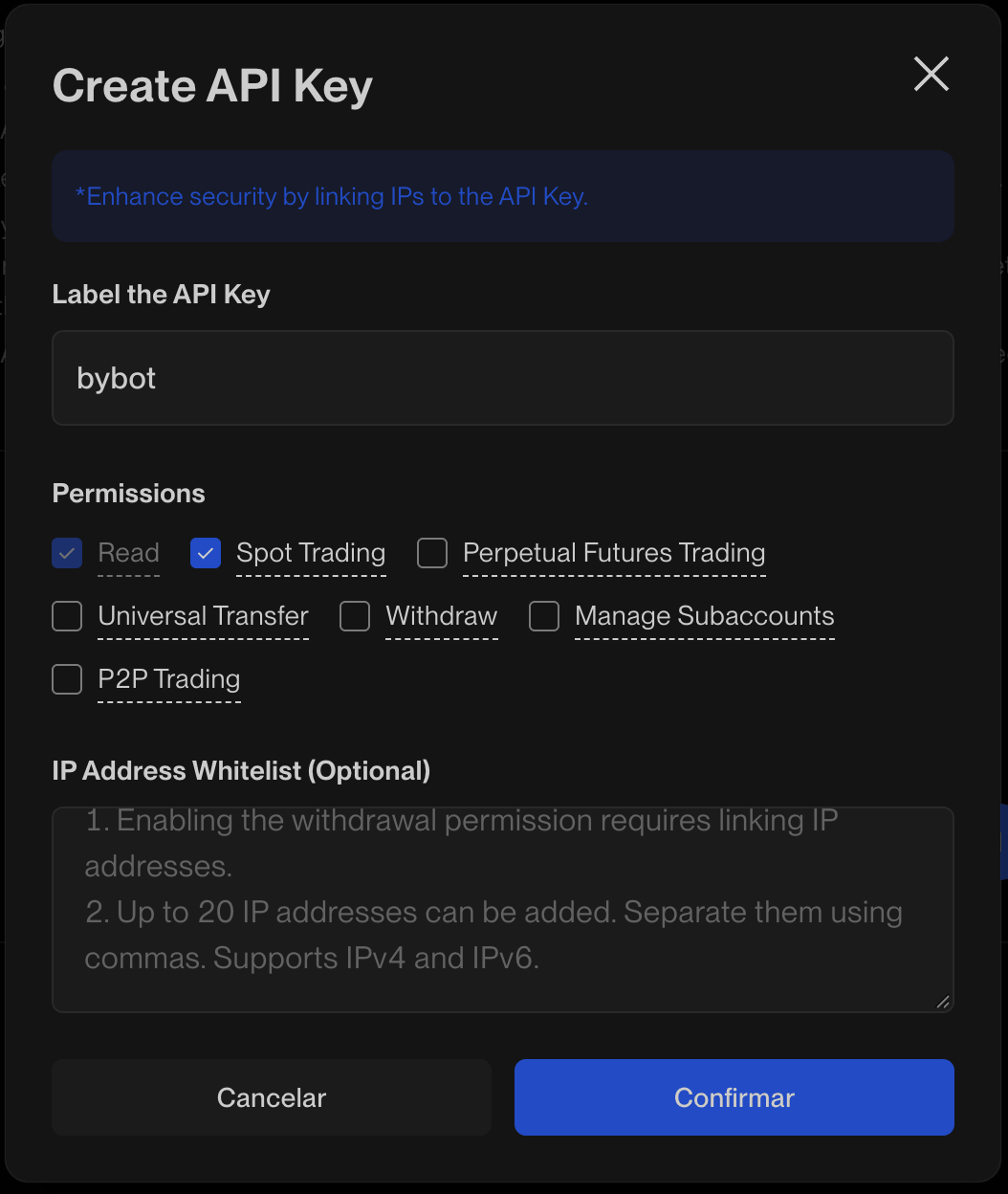
Don’t add IP addresses. Bybot connects from its own servers, and BingX will reject the bot’s requests from any address that isn’t on the list.
Never enable “Withdraw”. Bybot rejects a key that has withdrawals enabled.
5. Confirm key creation
Enter the verification codes BingX asks for — the code sent to your email and the code from Google Authenticator.
6. Copy the API Key and Secret Key
The new key appears under Existing API. Copy the API Key and the Secret Key and store both somewhere safe.
The Secret Key is shown only once. BingX hides it after you refresh or close the page. If you lose it, delete the key and create a new one.
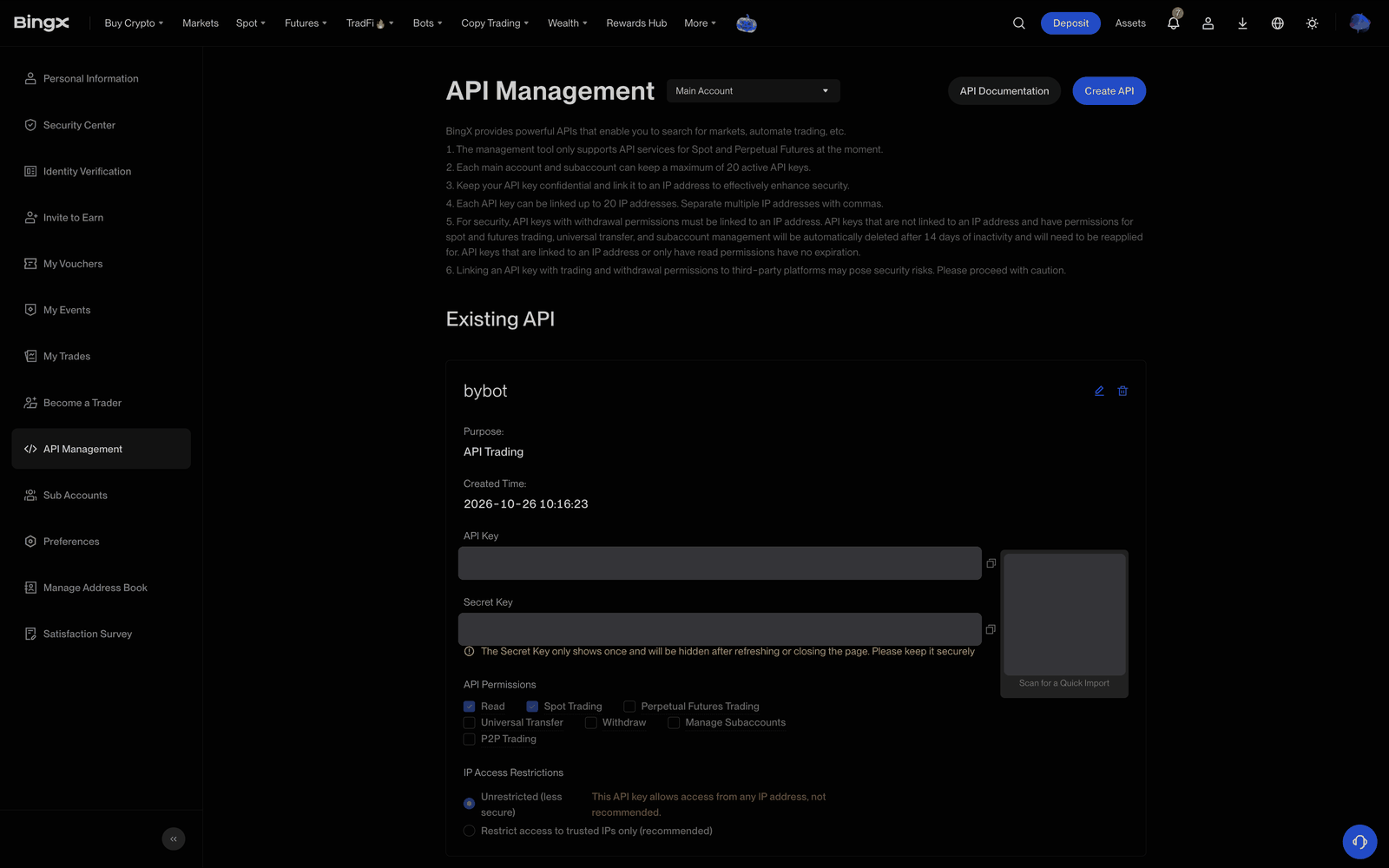
Check the key card: under API Permissions only Read and Spot Trading are checked, and IP Access Restrictions is set to Unrestricted.
7. Add the keys to Bybot
In Bybot, open “Settings” → “API Keys” and click “Add key”. Select BINGX, paste the API Key and Secret Key, and click “Save”.
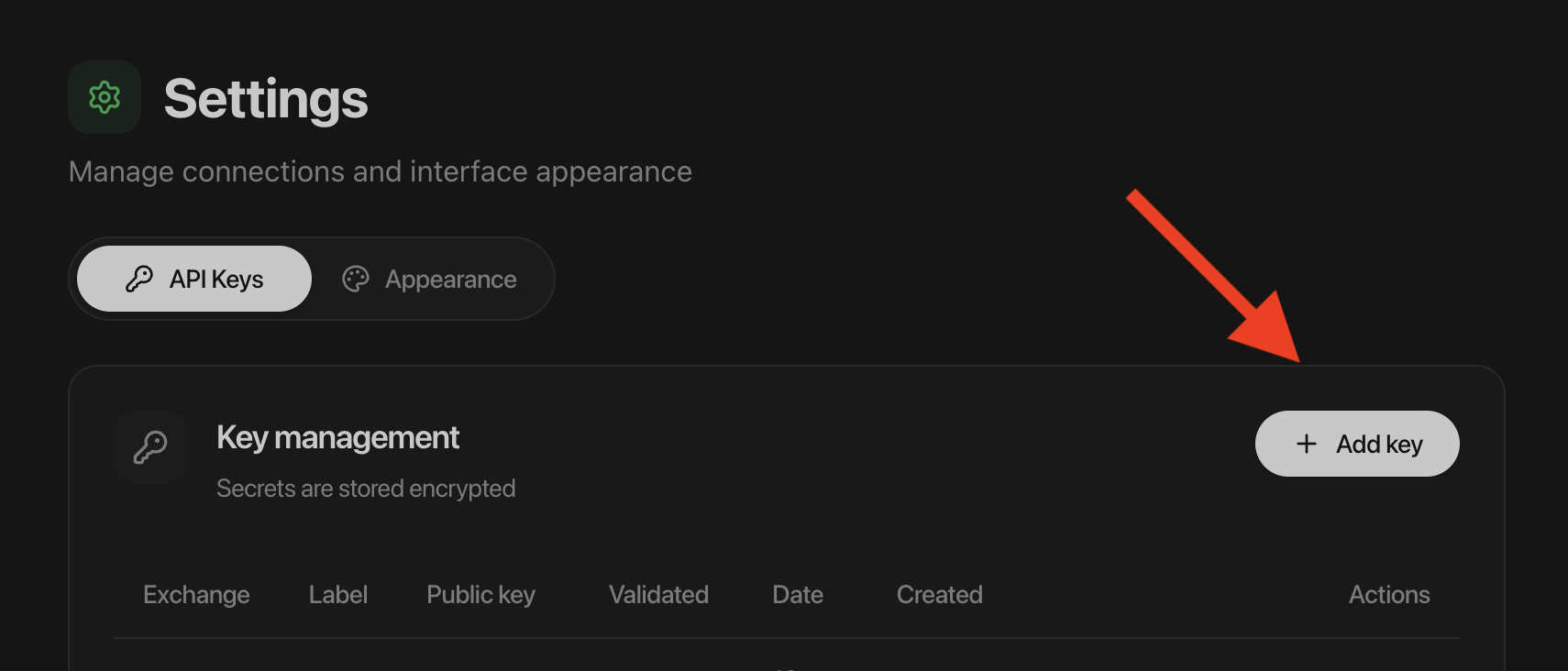
Bybot checks the key right away: spot trading must be on and withdrawals off.
8. Check the key
In the key list, click ”⋯” on the BingX card and select “Check key”. Bybot connects to the exchange and shows whether the key works. The date of the last check appears on the card. In the date column the key shows “No expiry”: BingX sets no end date, but it can delete a key that hasn’t traded for a long time — see “Key lifetime” below.
9. Check your balance
The bot trades with funds on your Spot account. If your USDT sits in another BingX account, for example the Fund or Futures account, move it to Spot via Assets → Transfer.
If there’s no USDT on your Spot account, the bot won’t be able to place orders.
Key lifetime
BingX automatically deletes API keys without an IP binding that have trading permissions after 14 days of inactivity. While a bot is running, the key is in use. If you stop all your BingX bots for more than two weeks, BingX may delete the key — then create a new one with this guide and replace it in Bybot.
Key security
- Withdrawals are impossible. Bybot accepts a BingX key only with withdrawals turned off.
- Bybot will never ask for your BingX password or 2FA codes.
- Never send the Secret Key in chats, screenshots, tickets, or shared documents.
- If the key leaks or you stop using the bot, delete it on the BingX API Management page. Access ends immediately.
Common issues
“BingX rejected the key”. Check that you copied the API Key and Secret Key in full, without extra spaces. If the key has IP addresses in its whitelist, open it on BingX, set IP Access Restrictions to Unrestricted, save, and add the key in Bybot again.
“The key has no spot trading permission”. Open the key on BingX → edit → turn on Spot Trading, save, and add the key in Bybot again.
“Withdrawals are enabled for this key”. Open the key on BingX → edit → turn off Withdraw, save, and add the key in Bybot again.
The key disappeared from BingX. BingX deletes keys without an IP binding after 14 days of inactivity. Create a new key with this guide and replace the old one in Bybot.
Lost the Secret Key. BingX shows it only once. Delete the key, create a new one and add it to Bybot.
Official exchange page: BingX API Management.