
Connect to HYPERLIQUID Exchange
Hyperliquid is an on-chain exchange: you log in with a crypto wallet or an email, and your account is tied to a wallet address. Bybot trades on your Hyperliquid account through an API Wallet — a separate key that can place and cancel orders for your wallet. Your money stays on your Hyperliquid account, and the API Wallet can’t withdraw or transfer funds. Setup takes about 10 minutes.
In Bybot you add two things: the address of your main wallet and the private key of the API Wallet. Never paste the private key or seed phrase of your main wallet — Bybot doesn’t need it and rejects it.
What you need
- A crypto wallet (for example, MetaMask or Rabby) or an email to log in to Hyperliquid — preferably a separate account for the bot
- USDC and a little ETH for gas on the Arbitrum network
- From about $100 per trading pair: the minimum order on Hyperliquid is 10 USDC
The API Wallet trades your whole Hyperliquid account, including perpetuals, and its permissions can’t be limited. That’s why we recommend a separate wallet for the bot.
1. Log in to Hyperliquid
Open app.hyperliquid.xyz and click “Connect”. Log in with a crypto wallet or with an email. If you use a wallet, then click “Enable Trading” and sign the request in it — it costs no gas.
2. Deposit USDC
Click “Deposit”, choose USDC on Arbitrum and follow the instructions on the screen.
Deposit at least 5 USDC. Hyperliquid doesn’t credit smaller deposits, and the funds may be lost. Only USDC from the Arbitrum network is accepted this way.
3. Make the USDC available for spot
Bybot trades on the Hyperliquid spot market. Do one of the following:
- switch your account to Unified account — then one USDC balance serves both spot and perpetuals, and no transfer is needed;
- or, in the standard mode, transfer USDC from Perps to Spot: in this mode deposits land on the Perps balance.
Portfolio margin mode is not supported: in it Hyperliquid borrows automatically when the balance is short, so the bot could buy on credit. Bybot refuses to work with such an account.
4. Open the API page
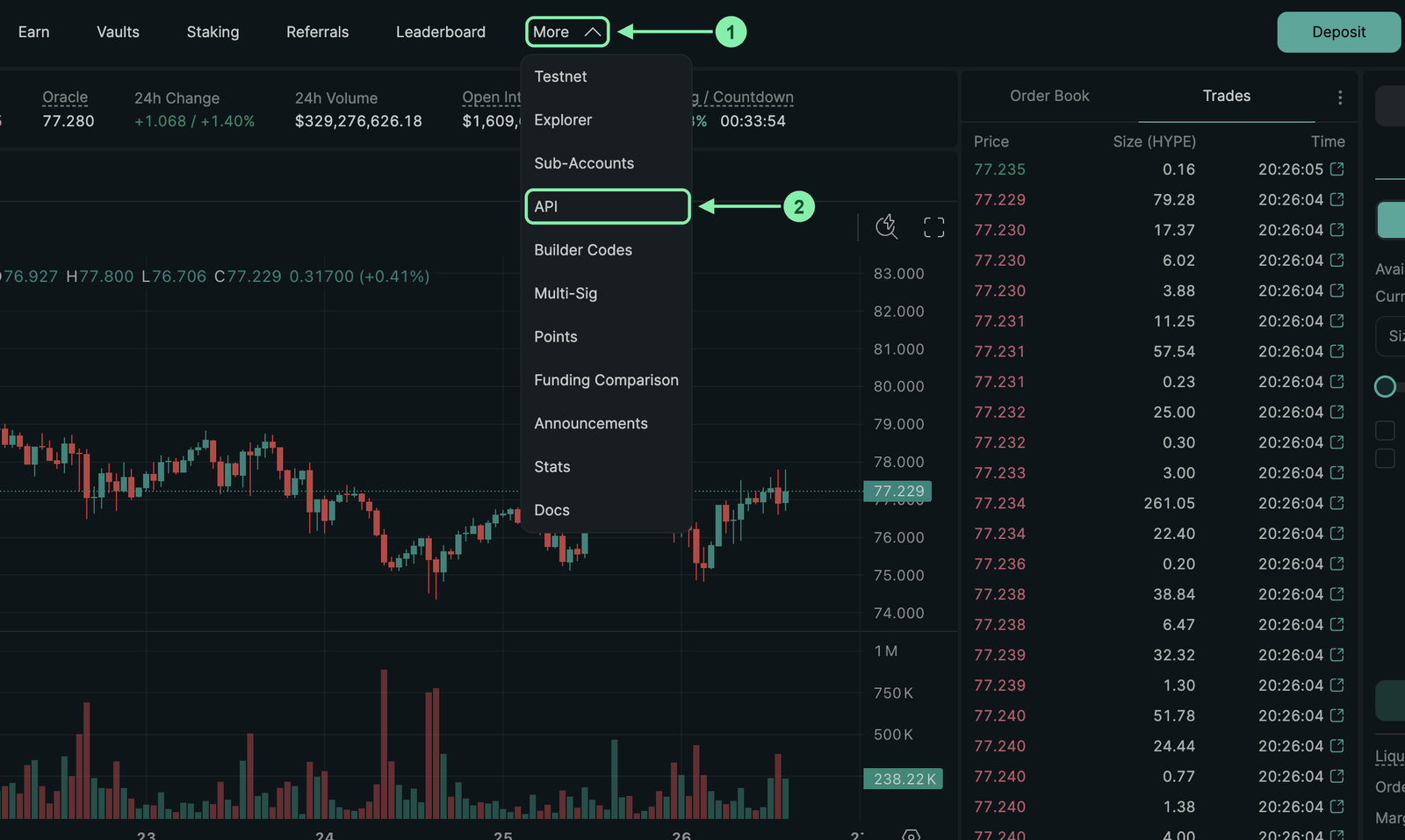
In the top menu, open “More” and select “API”.
5. Create a named API Wallet
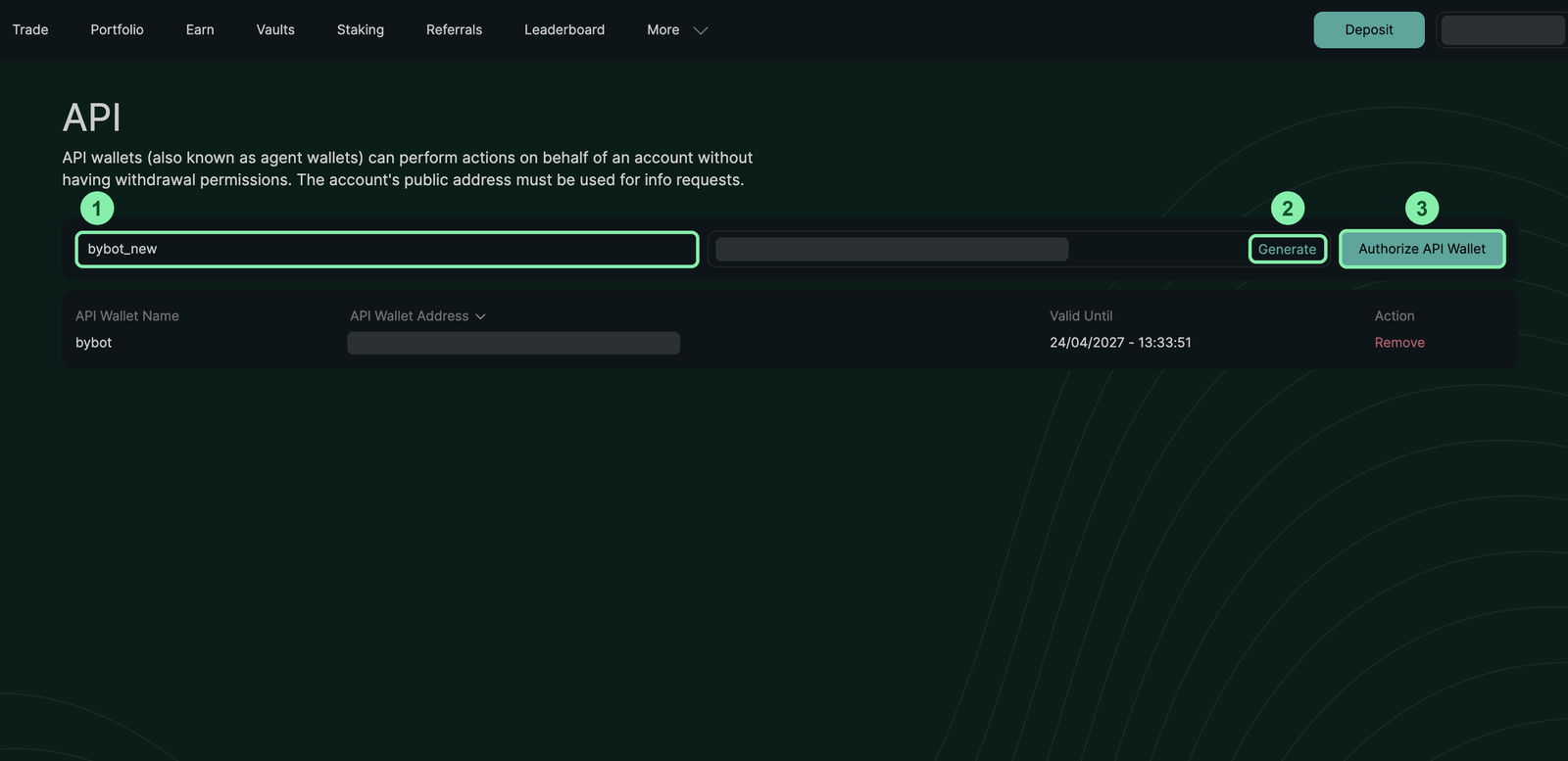
- Enter a name for the API Wallet, for example
bybot, and click “Generate”. - Click “Authorize API Wallet”.
- In the “Authorize API Wallet” window, click “MAX” in the “Days Valid” field — the API Wallet will work for the maximum period, up to 180 days.
- Copy the Private Key with the copy button and store it somewhere safe.
- Click “Authorize”. If you logged in with a wallet, confirm in it.
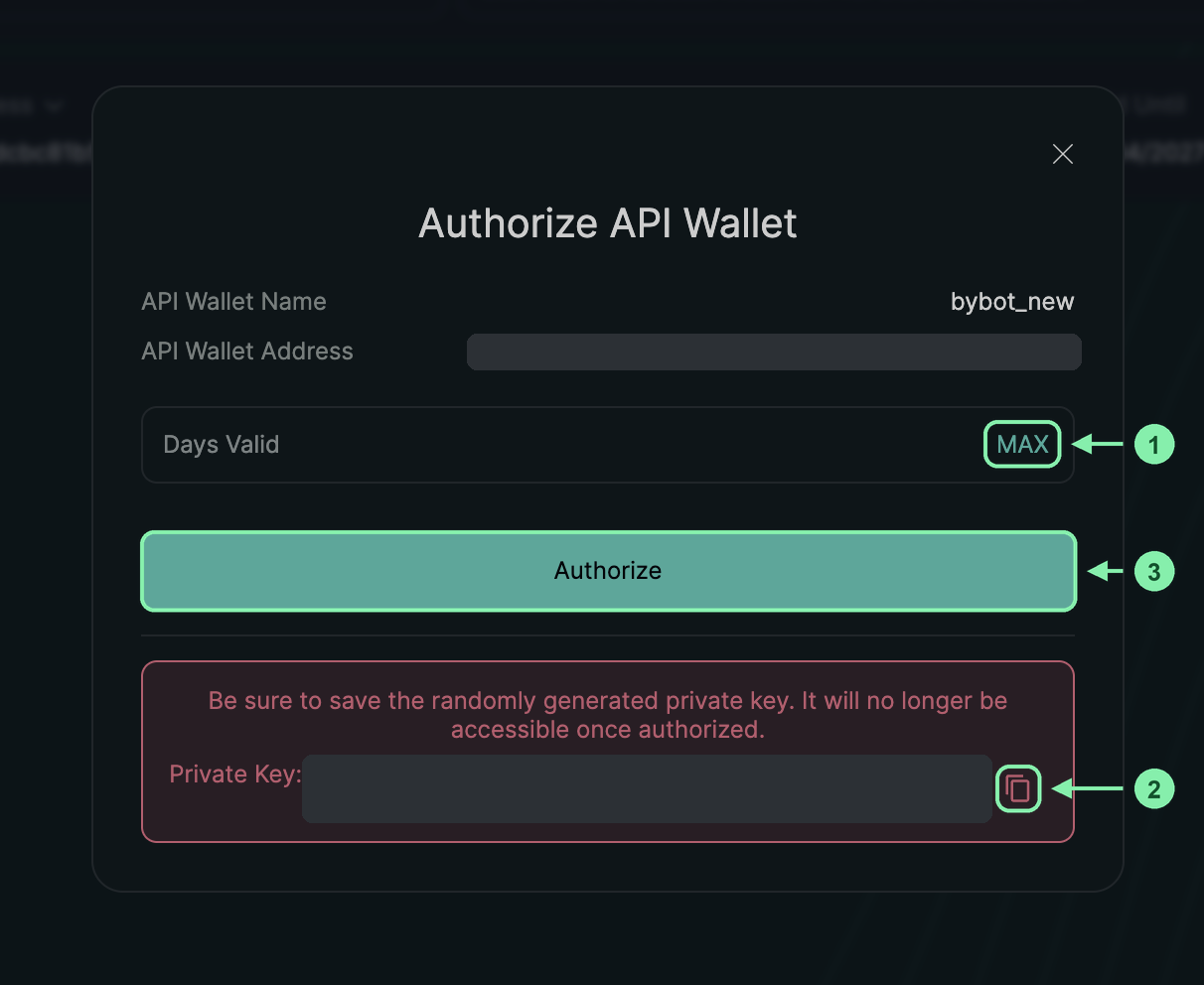
The private key is shown only once. If you lose it, create a new API Wallet.
The API Wallet must have a name. Hyperliquid replaces an unnamed API Wallet whenever you enable trading on another device — the bot would lose access.
6. Copy your wallet address
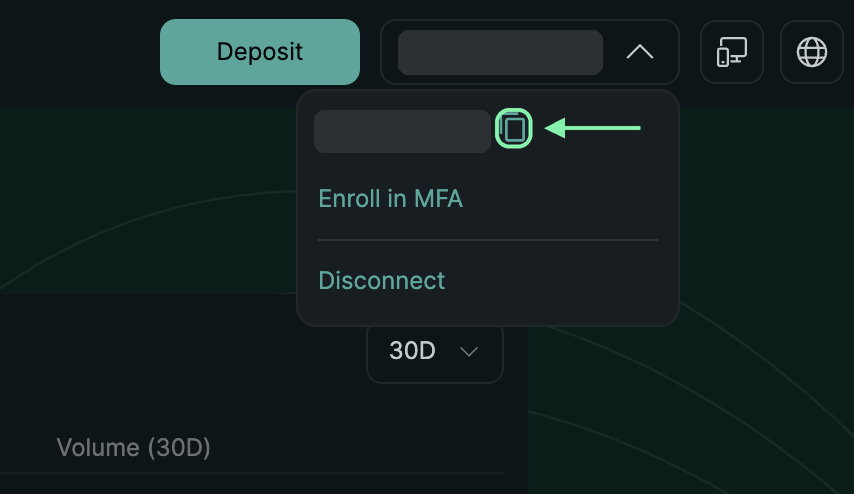
Click your account button in the top-right corner and copy the address with the copy button. This is the address of your main wallet — the one Bybot needs. Don’t use the API Wallet address from step 5.
7. Add the key to Bybot
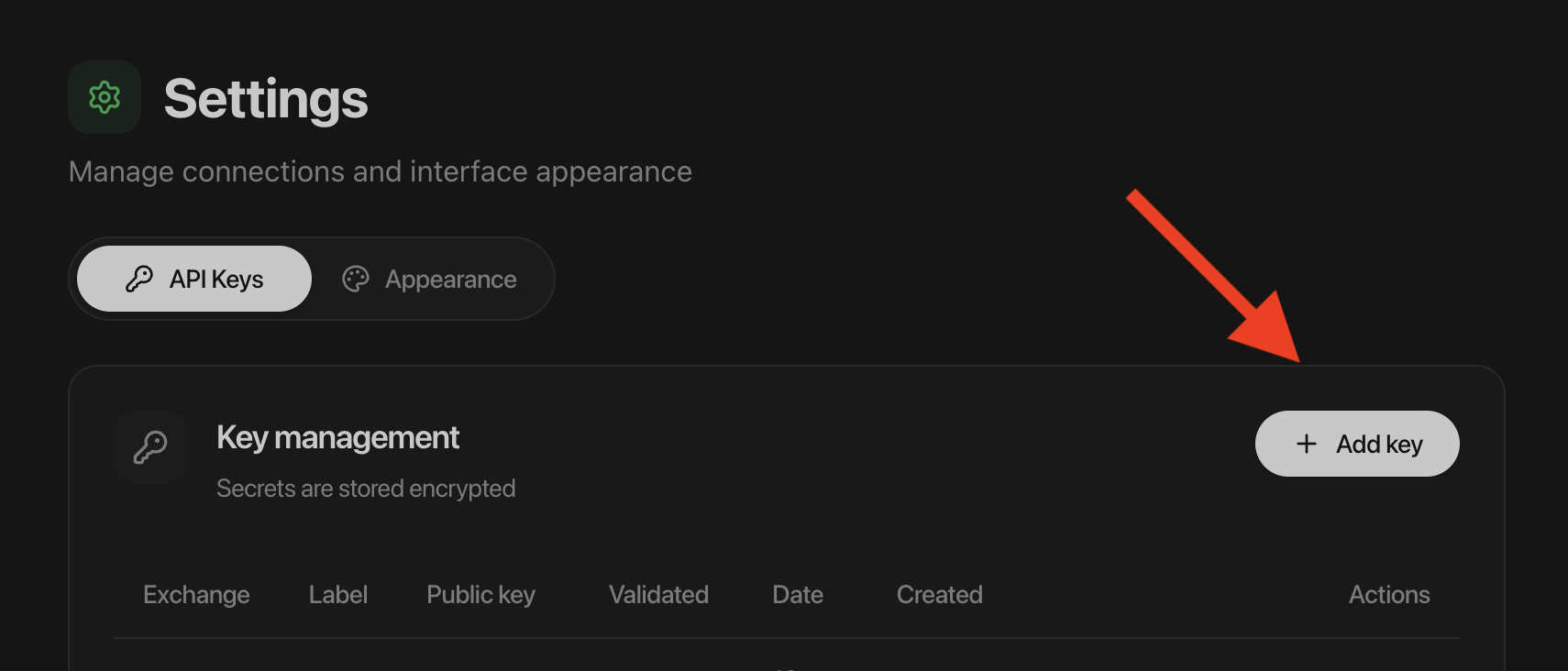
In Bybot, open “Settings” → “API Keys” and click “Add key”. Select HYPERLIQUID and fill in two fields:
| Field | What to paste |
|---|---|
| Wallet address | The address of your main wallet from step 6, 0x… (42 characters) |
| API Wallet private key | The private key from step 5, 0x… (66 characters) |
Click “Save”. Bybot checks the key through Hyperliquid’s public data: the API Wallet must belong to this wallet and have a name, and the account mode must be supported.
8. Check the key
In the key list, click ”⋯” on the Hyperliquid card and select “Check key”. Bybot confirms that the API Wallet is still connected to your wallet. The “API Wallet expiry” column shows when it expires.
9. Before you create a bot
- Bybot trades 5 pairs against USDC: BTC, ETH, SOL, ZEC and HYPE. BTC, ETH, SOL and ZEC on Hyperliquid are Unit wrapped coins (UBTC, UETH, USOL, UZEC).
- On Hyperliquid you can run one DCA bot per pair.
- The minimum order is 10 USDC.
Then follow the Creating a Bot guide.
API Wallet lifetime
You choose how long the API Wallet works when you create it, up to 180 days. Bybot reminds you before it expires. When it expires, the bot stops trading. To continue, create a new named API Wallet on Hyperliquid, then delete the old key in Bybot and add the new one.
Hyperliquid action limit
Hyperliquid limits the number of actions — placing and cancelling orders — per wallet: 10,000 to start with, plus 1 action for every $1 of trading volume on the wallet. When the limit runs out, trading doesn’t stop but slows down.
Bybot can’t buy extra actions: Hyperliquid accepts that purchase only with the signature of your main wallet and charges it to the main wallet. If the limit runs out, wait for your trading volume to grow or buy extra actions yourself from your main wallet.
Fees and leftovers
- Hyperliquid’s spot fee is 0.07% for taker orders and 0.04% for maker orders at the base tier.
- On a buy, the fee is taken in the coin you buy (for BTC — in UBTC), on a sell — in USDC. So you receive slightly fewer coins than you bought.
- A leftover worth less than the 10 USDC minimum order can’t be sold and stays on the account as dust.
Manual trading on the same wallet
Don’t trade manually on a pair where the bot works. Hyperliquid doesn’t let a wallet trade with itself: when your manual order meets the bot’s order, Hyperliquid cancels the order that was already in the order book — often the bot’s. The bot sees this as a cancellation.
Key security
- Withdrawals are impossible. An API Wallet can place and cancel orders, but can’t withdraw or transfer funds — Hyperliquid rejects such requests even if the key leaks.
- Never paste the private key or seed phrase of your main wallet. Bybot needs only the API Wallet key and will never ask for your seed phrase.
- Use a separate wallet for the bot. The API Wallet can trade your whole Hyperliquid account, including perpetuals.
- One wallet — one Bybot account. A wallet address can be connected to only one Bybot account.
- If you stop using the bot, stop your Hyperliquid bots, delete the key in Bybot, and then revoke the API Wallet on app.hyperliquid.xyz → API. Until you revoke it, the API Wallet can still trade your account.
Common issues
“Hyperliquid did not confirm the key”. Check the wallet address and the API Wallet private key, and that the API Wallet hasn’t expired.
“This is your main wallet private key”. You pasted the key of the main wallet. Create a named API Wallet (step 5) and paste its private key.
“The API Wallet must be a named one”. Create an API Wallet with a name on the API page and paste its key.
“This Hyperliquid account mode is not supported”. The account is in Portfolio margin. Switch to Unified account or the standard mode.
“This Hyperliquid wallet is already connected to another account”. One wallet can be connected to only one Bybot account.
Can’t delete the key. Stop your Hyperliquid bots first, then delete the key.
The bot doesn’t buy even though you deposited USDC. In the standard mode the deposit lands on the Perps balance. Transfer USDC to Spot or switch to Unified account.
The bot became slow. The wallet may have used up its Hyperliquid action limit — see “Hyperliquid action limit” above.
Official exchange documentation: Hyperliquid Docs.