
Connect to PIONEX Exchange
Bybot trades on your Pionex account through an API key. Your funds stay on the exchange: the key lets the bot see your balance and place spot orders. Pionex API keys have no withdrawal permission at all, so funds can’t be withdrawn through the key. Setup takes about 5 minutes.
What you need
- A Pionex account — sign up
- Two-factor authentication enabled on Pionex — the exchange asks for verification codes when you create a key
- USDT on your Pionex Trading account: at least 10 USDT for each DCA buy
- Fewer than 10 API keys on the account — Pionex allows no more than 10
1. Log in to Pionex
No account yet? Create one. If Pionex asks you to complete identity verification before creating API keys, do it first.
2. Open API management
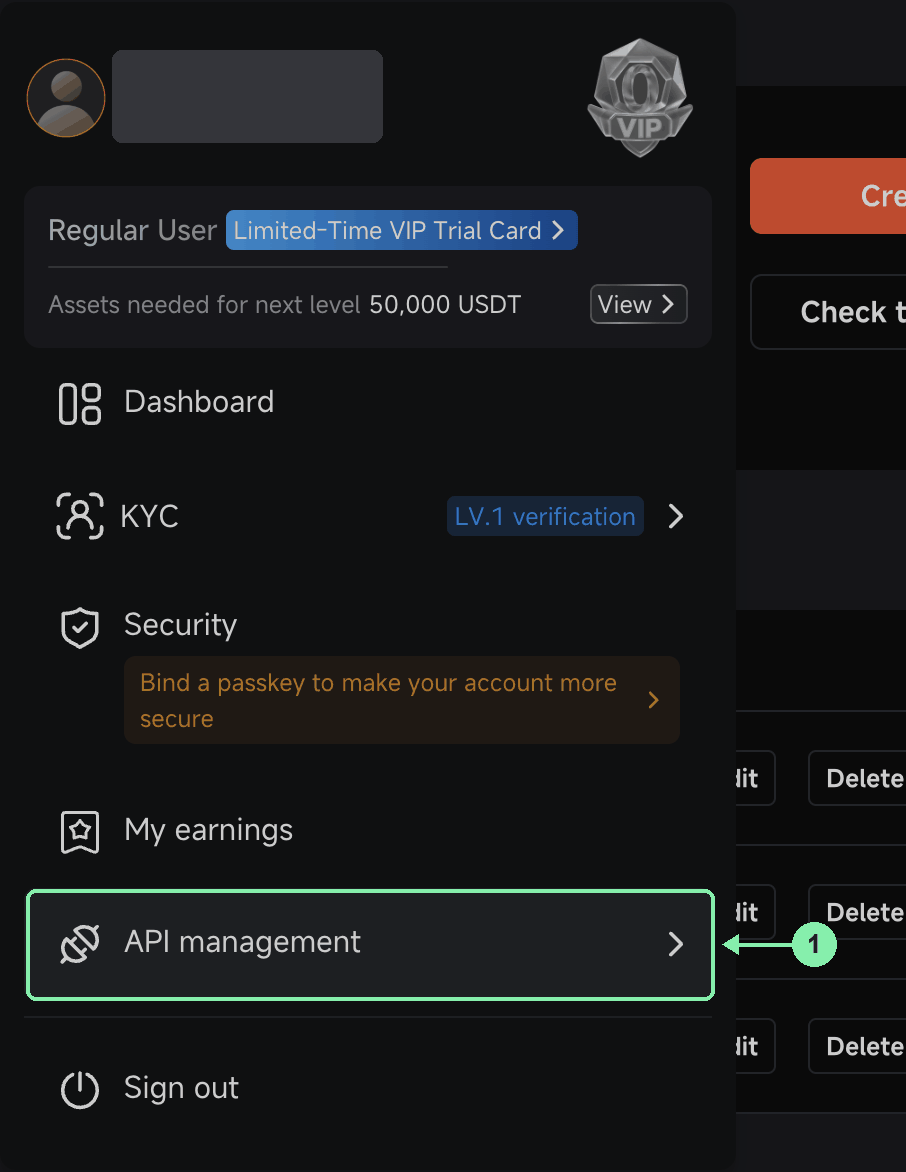
Click the profile icon in the top-right corner and select API management, or open pionex.com/en/apiManagement.
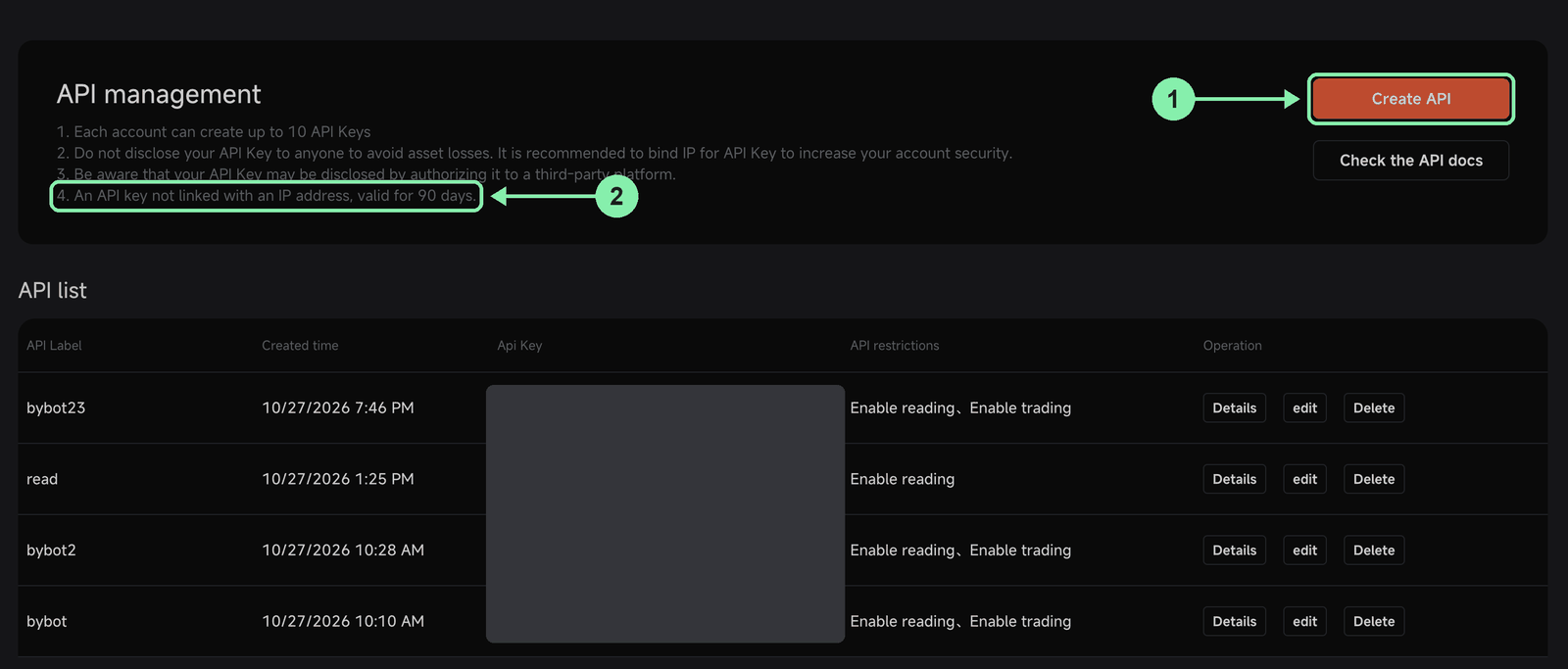
3. Click “Create API”
Create a new key just for the bot, even if you already have one: see “Key lifetime” below. The page also reminds you of two Pionex limits: up to 10 API keys per account, and a key without an IP address is valid for 90 days. If the account already has 10 keys, delete the ones you no longer use.
4. Configure the key
In the Create API KEY window:
| Field | What to select |
|---|---|
| API Label | Anything, e.g. bybot |
| Enable reading | ✅ on (always enabled, can’t be turned off) |
| Enable trading | ✅ on |
| Bot reading | ❌ off |
| Bot trading | ❌ off |
| Earn | ❌ off |
| Restrict access to trusted IPs only (Optional) | leave empty |
“Bot reading”, “Bot trading” and “Earn” give access to Pionex’s own bots and Earn — Bybot doesn’t need them. There’s no withdrawal option to turn off: Pionex API keys can’t withdraw. Click “Submit”.
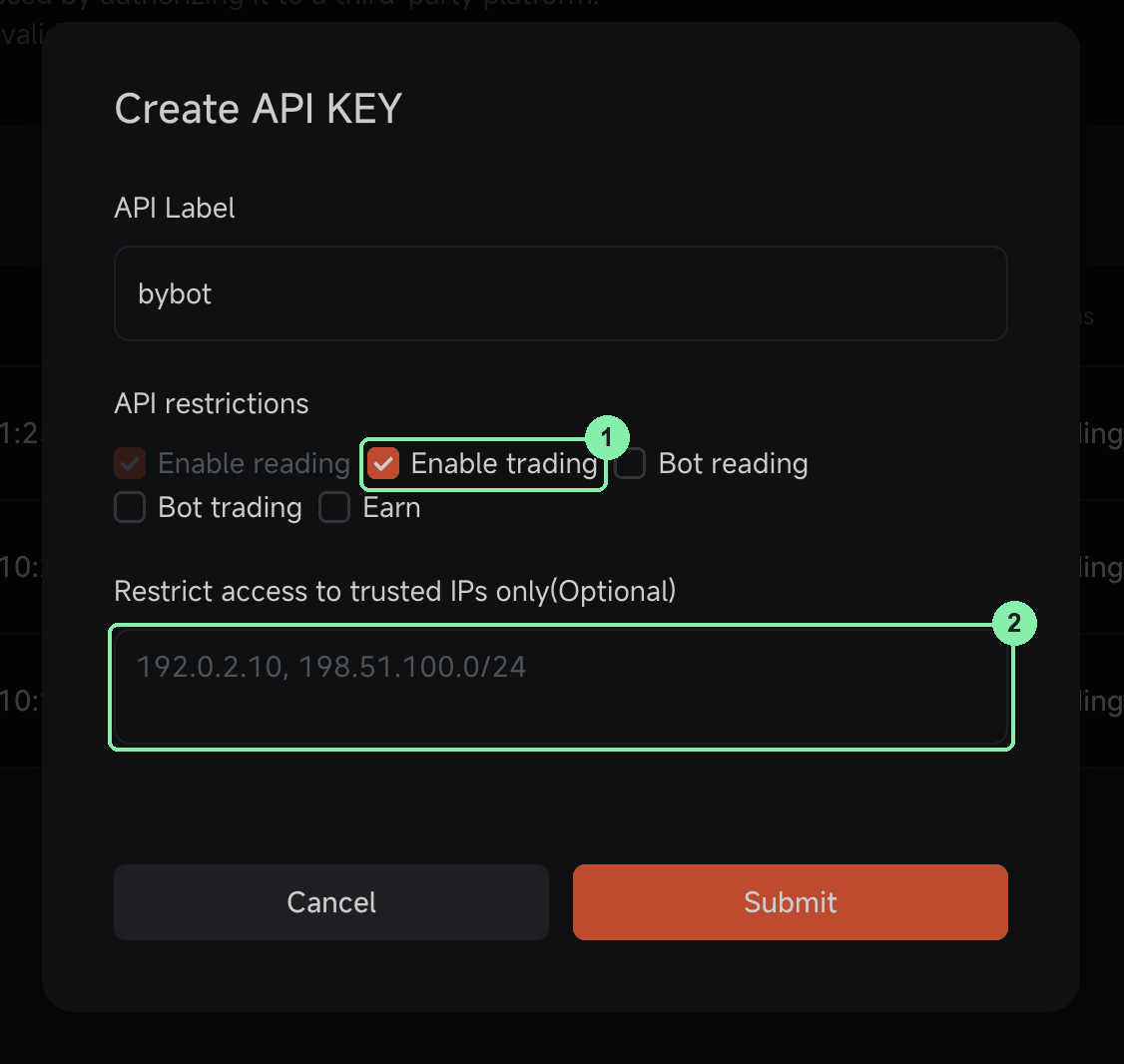
Don’t add IP addresses. Bybot connects from its own servers, and a key bound to an IP won’t work with them.
5. Confirm key creation
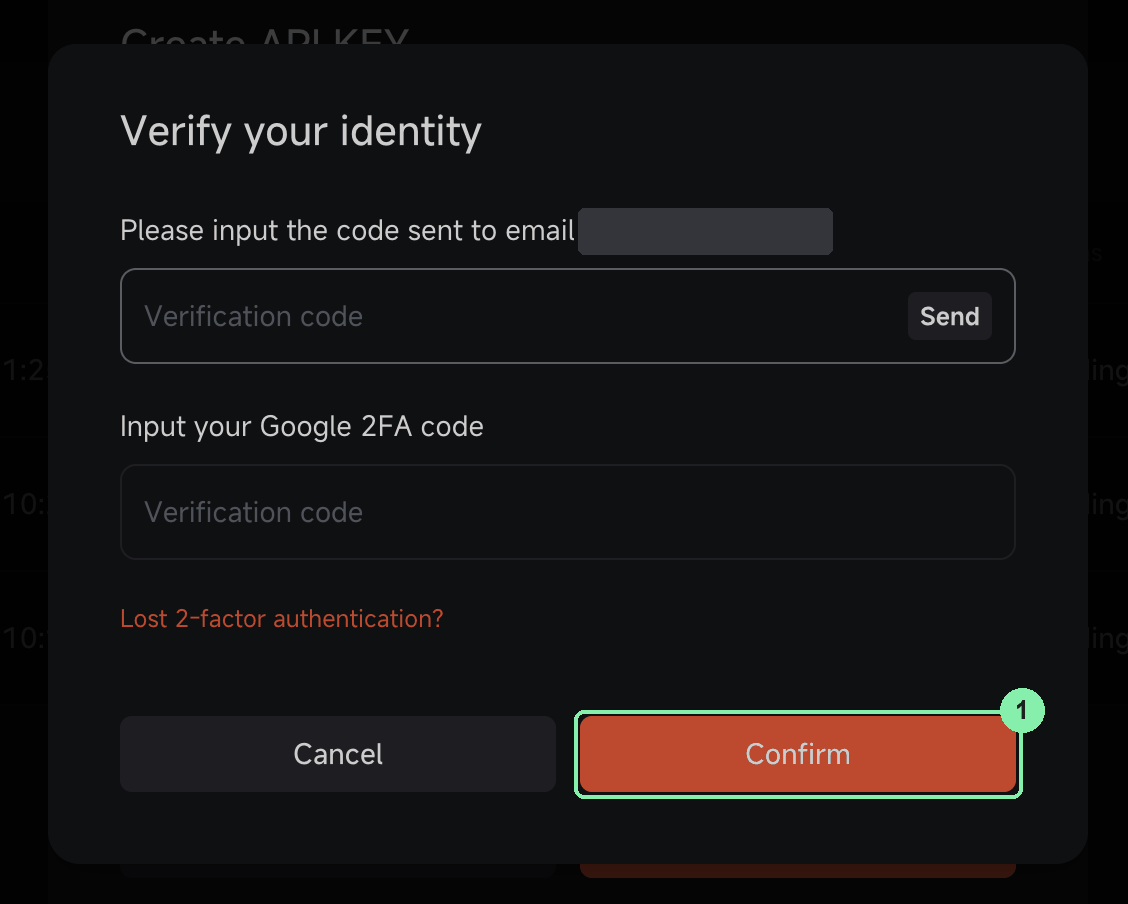
In the Verify your identity window, click “Send” and enter the code from your email, then the code from Google Authenticator. Click “Confirm”.
6. Copy the API Key and Api Secret
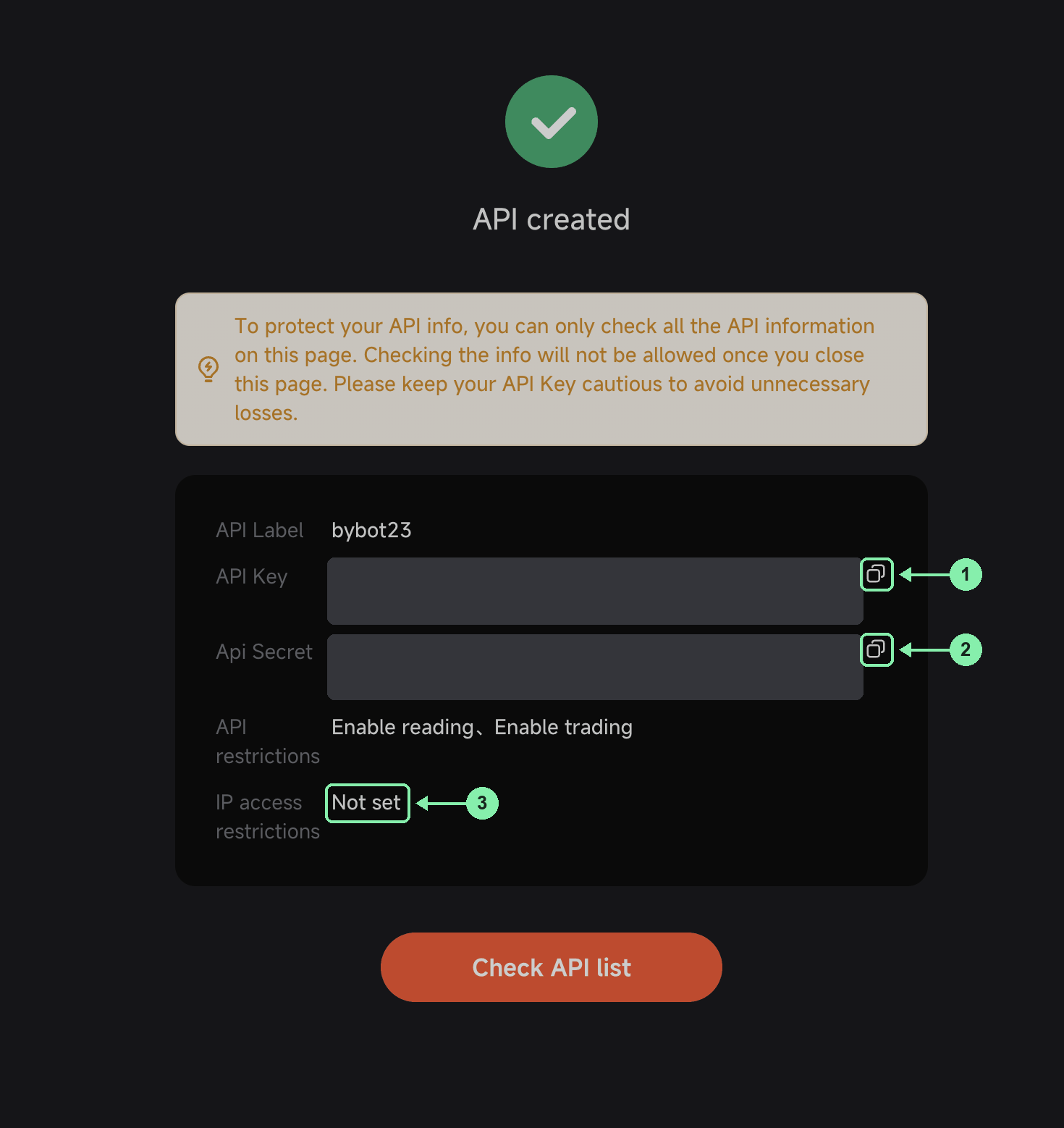
The API created page shows the API Key and the Api Secret. Copy both with the copy buttons and store them somewhere safe. Check that API restrictions shows Enable reading, Enable trading and IP access restrictions shows Not set.
The Api Secret is shown only once. Pionex hides it when you leave this page. If you lose it, delete the key and create a new one.
7. Add the keys to Bybot
In Bybot, open “Settings” → “API Keys” and click “Add key”. Select PIONEX, paste the API Key and Secret, and click “Save”.
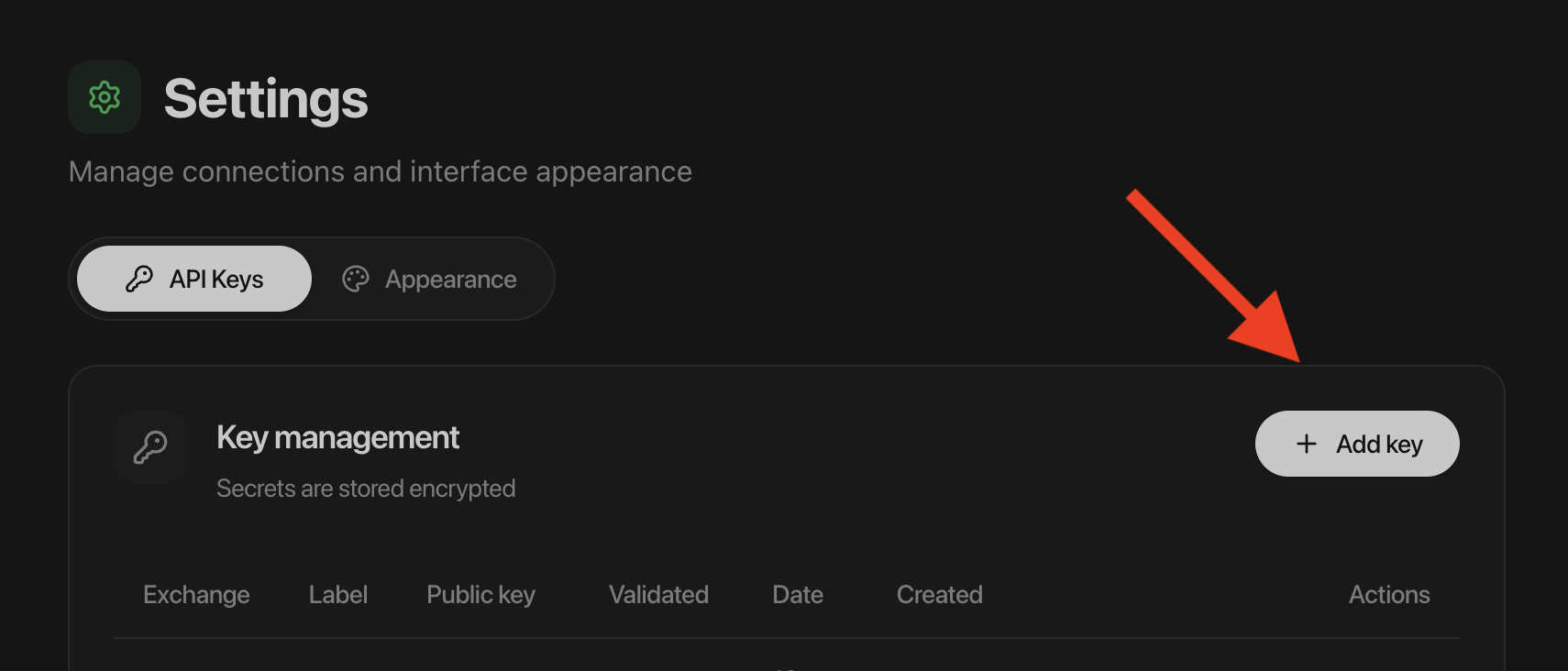
Bybot checks the key right away: it must read your balance and have trading enabled. The key card shows the date when Pionex deletes the key — 90 days after you added it.
8. Check your balance
The bot trades only with USDT on your Trading account. Funds inside Pionex bots (Grid and others) and in Earn aren’t visible through the API, so the bot can’t use them. Stop the Pionex bot or redeem from Earn and make sure the USDT is back on the Trading account.
Each DCA buy on Pionex must be at least 10 USDT. Plan the order sizes and the total budget with this minimum in mind.
Key lifetime
Pionex deletes an API key without an IP binding 90 days after it was created. Bybot counts these 90 days from the moment you add the key, so an older key would expire before Bybot’s date and the bot would pause without warning. That’s why you create a new key just for the bot.
A few days before the date, Bybot sends a reminder. “Check key” doesn’t extend the key — Pionex doesn’t extend it either. To replace the key:
- Create a new key on Pionex with this guide.
- In Bybot, open “Settings” → “API Keys” and delete the old Pionex key.
- Add the new key.
If the key has already expired, the bot pauses until you add a new one.
What to know about Pionex
- Fee — 0.05% per order. On a buy, Pionex takes the fee in the coin, so slightly less than the bought amount lands on your account. Bybot accounts for this.
- Pairs — 22 spot pairs. Of the USDC pairs, only BTC and ETH are available.
- Minimum order — 10 USDT per buy, higher than on some other exchanges. With a small deposit, check that the strategy fits.
- Connections — Pionex allows no more than 10 simultaneous connections per account. If the same account is connected to several other bots or terminals, Bybot may not get a connection. It keeps trading, but sees fills more slowly.
Key security
- Withdrawals are impossible. Pionex API keys have no withdrawal permission.
- Bybot will never ask for your Pionex password or 2FA codes.
- Never send the Secret in chats, screenshots, tickets, or shared documents.
- If the key leaks or you stop using the bot, delete it on the Pionex API management page. Access ends immediately.
Common issues
“Pionex rejected the key”. Check that you copied the API Key and Secret in full, without extra spaces. If the key was deleted or is older than 90 days, create a new one. If the key has an IP address, create a new key without one.
“The key has no trading permission”. Turn on Enable trading in the Pionex key settings and add the key in Bybot again.
The bot paused after about 3 months. Pionex deleted the key 90 days after it was created. Create a new key with this guide and replace the old one in Bybot.
The bot doesn’t see the balance. The USDT is in a Pionex bot or in Earn. Move it back to the Trading account.
Can’t create a key. The account already has 10 keys. Delete the ones you don’t use.
Lost the Secret. Pionex shows it only once. Delete the key, create a new one and add it to Bybot.
Official exchange page: Pionex API management.